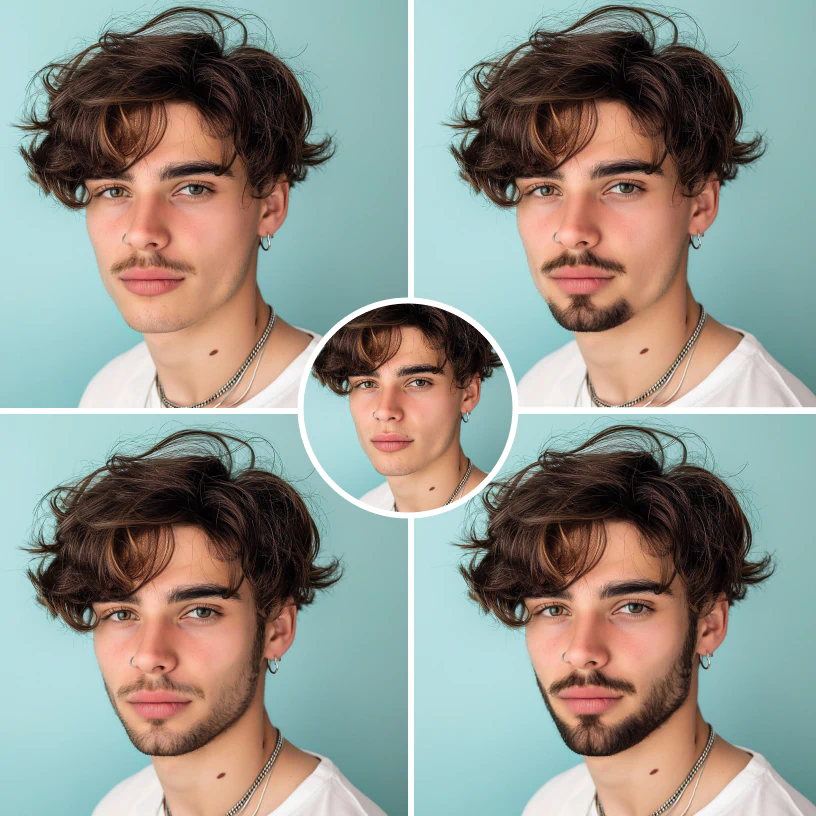
Why generate a preview before you grow anything
Every beard style on this site draws a different line around your jaw — a full
beard covers the whole lower face, a goatee isolates the chin, a Van Dyke separates
mustache from chin entirely. Those lines interact with your specific bone structure
in ways that are genuinely hard to picture from a description or a photo of someone
else's face. The Try-On Studio generates a photorealistic image of that style on your
own photo, which is a far better starting point than guessing based on what looked
good on a stranger.
The generator is instructed to change only the facial hair — your face, skin
tone, expression, lighting, and background are all kept as close to the original as
the model allows. It's a preview of coverage, shape, and color, not a guarantee of
pixel-perfect realism on every photo.
How to use the studio, step by step
- Upload a front-facing photo. Chest-up, good lighting, jaw and neckline visible — this gives the model enough of your face to work with.
- Pick a style from the row of eight. Browse with the arrows and tap a thumbnail to select it.
- Choose a color. Popular, natural, and fashion colors are all available — the mini preview updates as you pick.
- Choose a mode and resolution. Fast mode is quickest for browsing styles; High quality spends more time per image; 2K/4K resolutions upscale the result afterward.
- Generate, then download or share. Each generation uses credits based on the mode and resolution you picked; the result can be downloaded or shared once it's ready.
Tips for a more useful preview
- Use even, front-facing lighting. Harsh side lighting or backlighting makes it harder for the model to preserve your features accurately.
- Keep your neck and jaw visible. A photo cropped tight to the face makes it harder to judge neckline-dependent styles like the full beard or ducktail.
- Try more than one style and color. You can regenerate with a different style or color on the same uploaded photo without re-uploading.
- Start on Fast mode. Browse through styles quickly and cheaply, then switch to High quality and a higher resolution once you've settled on a favorite.
What this tool can and can't do
It gives you a genuinely photorealistic read on how a style's shape, coverage, and
color could look against your own face — a real generative render, not a flat
outline. It can't predict your actual hair density, growth pattern, or how patchy your
specific growth might look while it's coming in, since those depend on your own
follicles, not the photo. Treat the result as a strong visual guess, not a guarantee
of your exact eventual beard.
How photo generation works
When you generate a preview, your uploaded photo is sent to our server, which
calls a third-party AI image model to add the selected beard style and color. The
generated image is returned to your browser for you to view, download, or share;
we don't use uploaded photos for anything beyond producing that one preview. Because
generation happens off-device, this is different from a purely local, client-side
tool — that trade-off is what makes a genuinely photorealistic result possible.